Military
Military command and support
Organize units and formations while watching readiness and support load.
Reviewed
Conditional decommission preview and Keep these formations require the updated client and strategic server. Available actions depend on your empire, permissions and the release running in your world. The commissioning completion feedback described here is prepared for the next client publication. Reviewed crew actions, roster BV/zone controls and recovery estimates are implemented locally for the next compatible game update; world-specific crew actions require enablement.
Find and select units
Open Forces → Military. Tabs separate individual units, deployed towers, formations and empire-wide Military Support. Filter the roster by type, training, mobilization, formation or zone. Opening Military from a zone selects that zone. Changing filters clears selections; units that move outside the filter are no longer selected.
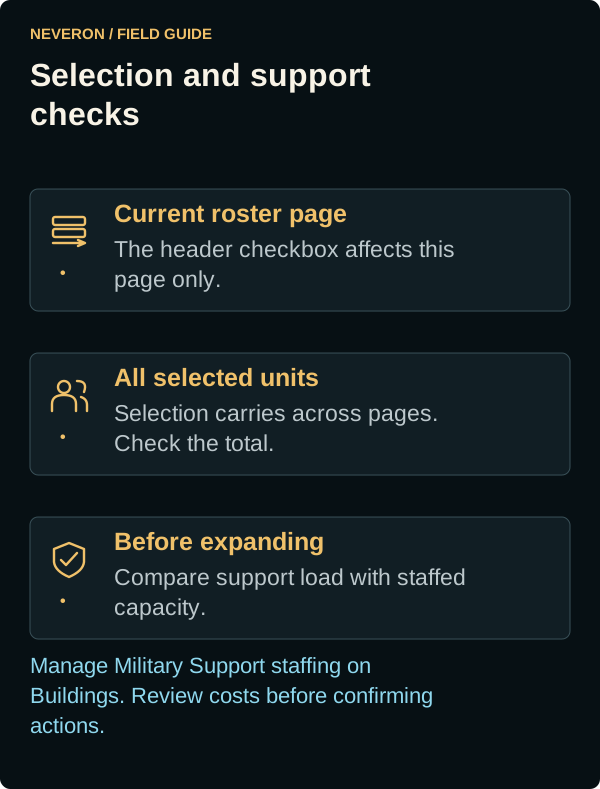
The unit list shows 100 rows per page. Selections remain across pages; the header checkbox changes only the current page. Check the toolbar's total selected count before acting on a large force.
Click a row's checkbox, Location cell or Transit cell to select or unselect it. The larger selection area is prepared for the next client update. Unit and crew links keep their usual actions, and disabled checkboxes cannot be selected through the larger area.
Organize your force
For units committed to a Land War attack, Transit shows In flight with the destination and arrival time, then In battle after arrival. Separate air-drop transports can arrive at different times. Awaiting settlement means combat has ended but the units are still reserved. The Location column keeps the recorded origin; the deployment destination appears in Transit. Units not assigned to the attack keep their normal status, and committed units cannot be selected for another roster action. These deployment labels require the compatible client and server update.
The toolbar changes with the active tab and selection. Use the offered controls for commissioning, formation assignments, relocation and mobilization. Inspect each confirmation's units, destination, costs and restrictions before submitting. The empire-wide training level applies to new or actively training units.
After submitting a commissioning request, wait for its result before trying again. A successful request closes the commissioning dialog and shows Unit commissioning completed.; the roster and stored inventory update automatically. If the request is rejected, the dialog stays open with your choices available so you can correct the problem and retry.
After the compatible game update, Decommission Unit(s) shows Review decommissioning only if formations would be deleted. The preview lists affected empty lances, companies, battalions and regiments, including parents that become empty. Select Keep these formations to retain their names and hierarchy, then choose Decommission units. Leaving the checkbox unchecked deletes the listed formations. Units and eligible crews return to inventory either way.
If no formations would be deleted, decommissioning proceeds directly without a preview. Formations with surviving members, including mothballed units, or surviving child formations remain; unrelated empty formations are preserved. If the deletion list changes before confirmation, review the new list before confirming again. Closing the preview before submitting cancels it; closing after submitting does not undo the command. The roster updates automatically after success.
Staff your support capacity
Military Support compares force-wide load with staffed capacity and shows projected ownership cost and a grace deadline. Consequences ramp through 33%, 66% and 100% in 30-day phases. Use Buildings to manage Military Support staffing; the Military page explains the resulting capacity.
For one owned zone, open Zone and check Local Military Support for stationed and incoming load, defensive capacity and overflow consequences. The panel loads once the selected zone and your empire are known and refreshes when support changes. Support details for other empires' zones are unavailable.
Towers and different storage/readiness states contribute differently. Check their shown Support Points and the force-wide estimate before expanding. Mothballed storage and recommissioning are managed through Manufacturing.
Keep readiness separate from future warfare
Land War Pressure summarizes reserve, standing-army, mobilization, staging and drop capacity. These planning controls do not mean the full hostile attack workflow is available. Read the War Room guide before making a strategic-war plan.
Reviewed crew and formation actions
The following additions await the compatible game update and may be enabled separately in each world. Controls appear only when your world supports them and you have Military permission.
- Unit nickname: select one unit, enter up to 40 characters and choose Confirm to save. The nickname identifies the chassis; the crew name is separate. Blank restores the catalogue name. Named chassis retain their identity through mothballing and recommissioning; clear the nickname before returning an eligible chassis to anonymous inventory.
- Swap crews: select two compatible units in the same zone, or select one unit and an individually stored compatible crew. Review both resulting assignments by design and crew name; skills appear as Gunnery/Piloting (for example, 3/2), followed by current/maximum health. Health, skills and experience follow the crew; unit damage and formations stay with the chassis. A stored replacement uses the slot freed by the incoming crew.
- Stored Pilots: select rows and choose Review selected discharges. Review the selected crew names before confirming. Discharge is permanent.
- Assign Worst Eligible: while commissioning, use the worst eligible stored crews first. Skill preference reverses Assign Best while eligibility and tie rules remain the same. Choose Commission to apply directly, without another review popup. Progress and errors appear in Commission Unit. If an interrupted result offers Retry saved command, use it to recover the same operation safely.
- Disband formation: select one formation and review its children and units. Only that formation is removed. Child subtrees remain independent formations; direct lance units become unassigned. Units do not move or lose their crews.
Swap, discharge and disband previews load when you open the action or select a replacement. Read the preview, then choose Confirm. There is no separate review button. Use the × in the popup header to close it.
Busy units may require finishing battle commitments, travel, treatment, training, repairs or mobilization first. If eligibility changes after review, the entire action is rejected; close the dialog and review again.
If a command reply is interrupted, choose Recover pending command and Retry saved command. This recovers the same command safely, including one that already completed. Updated roster information arrives automatically.
Sort formation strength
Click the Roster BV column heading or Sort by roster BV to order the selected hierarchy level by all current members, including temporarily unavailable or mothballed units. The first click puts the highest BV first; click again to reverse the order. The heading arrow shows the direction. Keyboard users can focus the heading button and press Enter or Space. Sorting stays active as roster information changes. Roster BV does not mean every member can deploy now. Clickable heading sorting is prepared for the next client update.